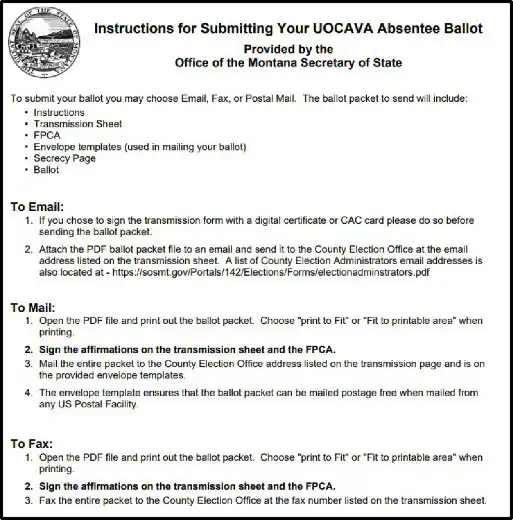

FPCA Instructions
A UOCAVA voter may request an absentee ballot electronically by completing and returning an online Federal Post Card Application (FPCA).
If you are a current UOCAVA voter and have registered to vote with an email address, you will receive an email from SOS ElectEmail on December 31st containing a link to the FPCA. You must fill out an application yearly to maintain your UOCAVA status. If you don’t receive this email or if you are applying for the first time, use the FPCA link below. These directions, for both new and current UOCAVA voters, guide you through the process of obtaining your ballot.
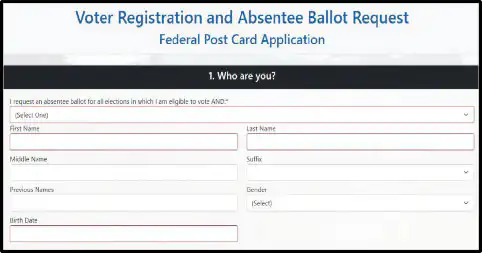
Click on this link: FPCA. It will take you to the Voter Registration and Absentee Ballot Request page. All fields in red must be filled out.
#1. Who are you? Select your UOCAVA status.
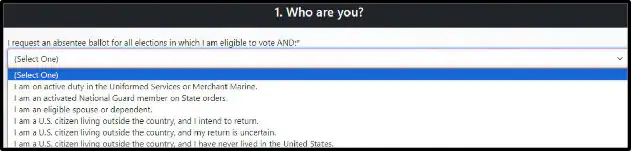
Enter your first name, last name, and birth date. (All other fields are optional.)
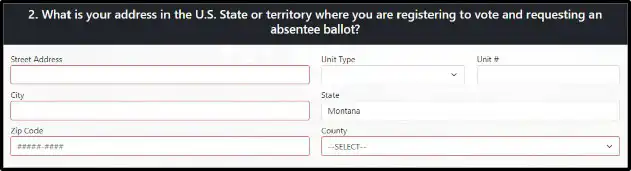
#2. What is your address in a Montana county?
Fill out your address. Fields in red are required. (A 5-digit zip code is acceptable.)
#3 Where are you now?
This information is required if you wish to receive a ballot by mail. It is also required for US citizens living out of the country.
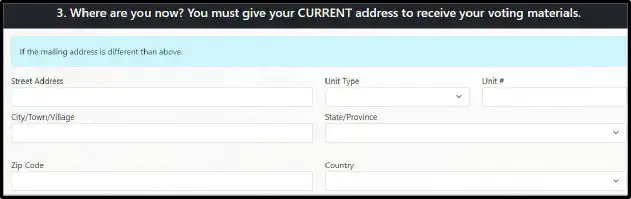
#4. What is your contact information?
If you wish to receive your ballot online, provide your email address.

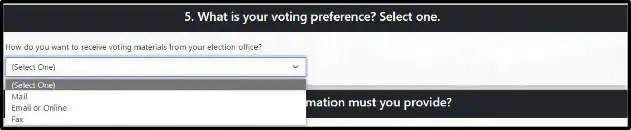
#5. What is your voting preference?
Select the dropdown caret. Indicate how you would like to receive your ballot: by mail, FAX, email, or online.
#6. What additional information must you provide?
Montana does not require further information, but you may use this space to clarify your voter information.

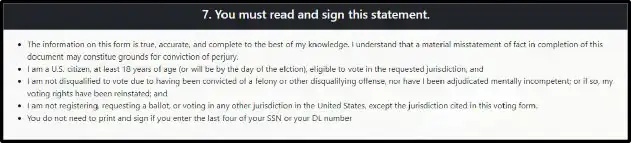
#7. You must read and sign this statement.
Please read this section carefully. By completing this document, you agree that any misstatement you entered in this application may constitute grounds for conviction of perjury.
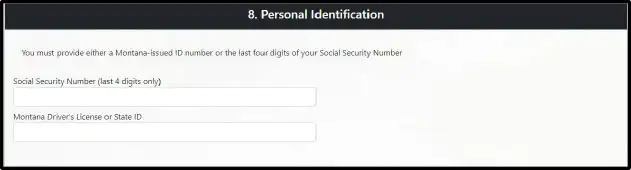
#8. Personal Identification.
A Social Security number, a Montana driver’s license, or an ID is required in place of a signature.
Click “Continue.”

You will have the opportunity to review your application. If there is incorrect information, select “Edit.” If everything is correct, select “Submit.”

Click “OK.”
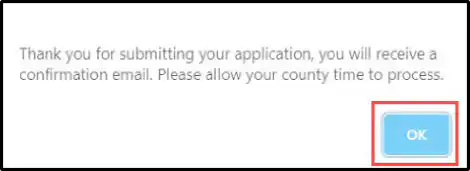
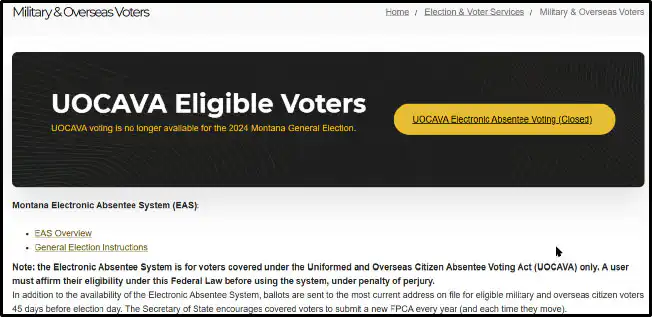
When you click “OK,” you will be directed to the Secretary of State’s Military and Overseas Voters information page. Refer to this page if you have questions about the Electronic Absentee System (EAS).
You will receive an email from your County informing you that your county has received and is processing your voter registration submitted online. (This may not appear immediately.)
HOW TO VOTE YOUR ELECTRONIC BALLOT
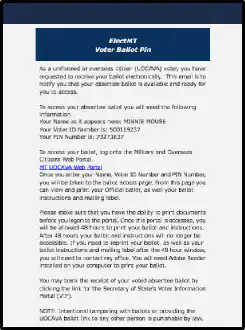
After your registration has been processed, you will receive an email from your County Administrator: ElectMT Voter Ballot Pin with the information you need to access your ballot. You should have this information available for the next step.
UOCAVA ballots are sent 45 days before the election. You may register anytime up to and including election day and will receive a ballot. However, be aware that elections close at 8:00p.m. on election day, and you will not receive an electronic ballot if there is not enough time for the county to process your application and send it before 8:00 p.m. Additionally, to be accepted and counted, your ballot must be emailed by 8:00 p.m.
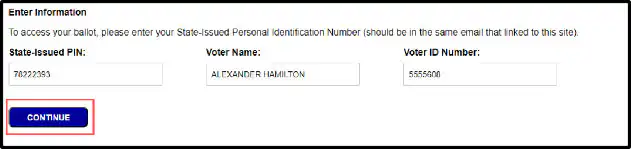
When you click the blue link (MT UOCAVA Web Portal), the page opens to the first step, Voter Lookup. (Have the information you need available to vote your ballot. You only have 48 hours to vote your ballot after accessing this portal.)

Step 1: Voter Lookup. Enter your information precisely as it appears in the ElectMT Voter Ballot Pin email into the Voter Lookup, then click “Continue.”
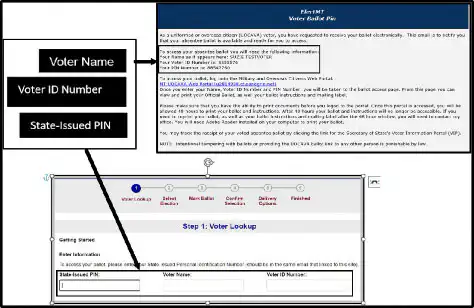
Click “Continue.”
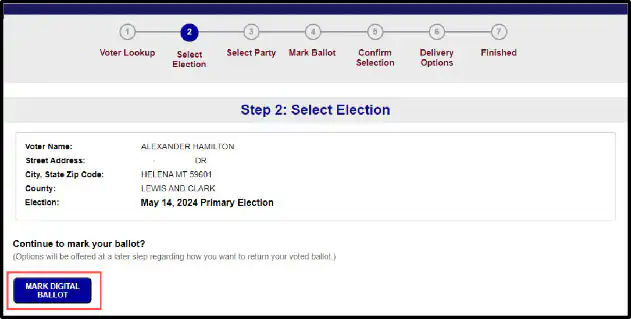
Step 2: Select Election
If there is more than one election in your county at that time, you will select the election you wish to vote in. (There may not be more than one.) Once you have chosen the election, click “Mark Digital Ballot.”
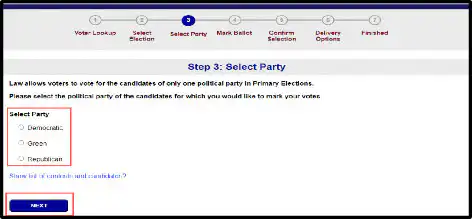
Step 3: Select a Party (Primary Election only)
You may vote for only one political party. This step will only appear for a primary election. If you wish to see a list of candidates, click “Show list of contests and candidates.” Click “Next.”
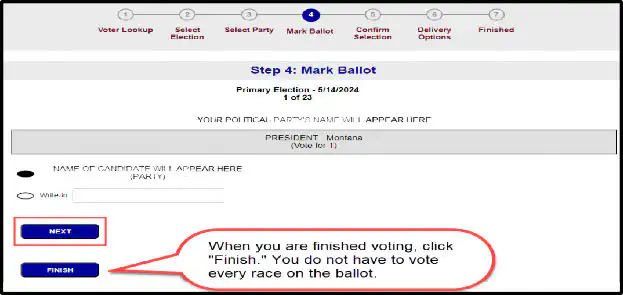
Step 4: Mark Ballot. Click the oval next to the name of a candidate. Click “Next.”
When you have finished voting, click “Finish.”
Step 5: Confirm Selections. Click “Change” if you wish to choose a different candidate.
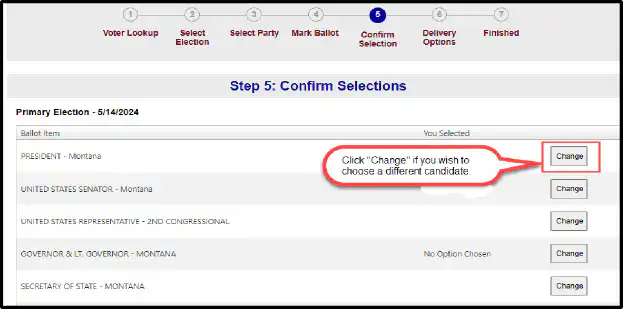
Click “Confirm” on the bottom right of the page.

Step 6: Submit Ballot. Choose your preferred delivery method for your ballot. This step describes how to send using each of these methods. The easiest way to deliver your ballot is to submit it electronically, but each process is acceptable.
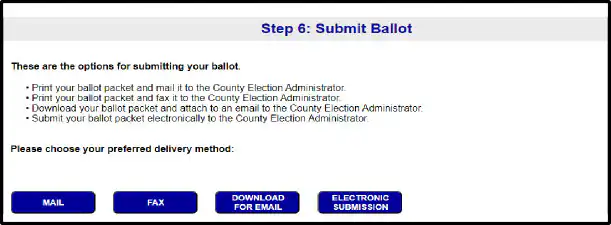
You will see this message:

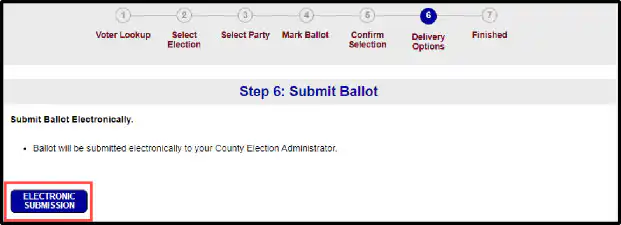
ELECTRONIC SUBMISSION: Click “Electronic Submission.”
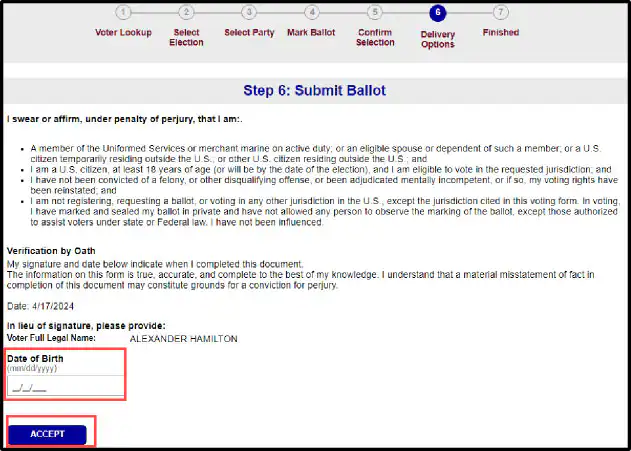
Step 6 (cont.): Enter your Date of Birth.
Click “ACCEPT.”
Select OK.
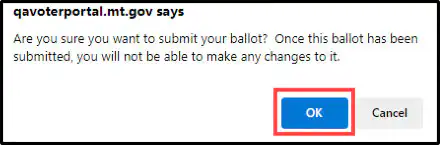
Click “LOGOUT.”
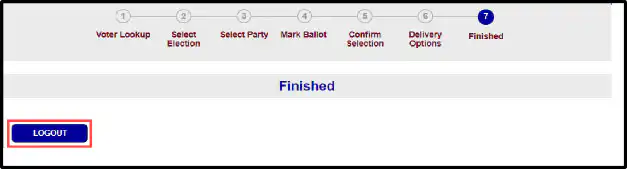
Congratulations! You have completed your ballot delivery. The completed ballot will be sent to your county administrator.
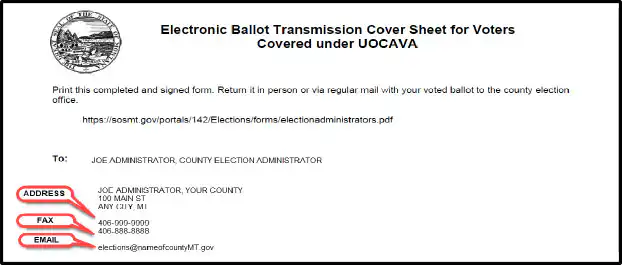
If you choose to deliver your ballot by mail, by hand, or by fax, find the contact information you need on your Electronic Transmission Ballot Transmission Cover Sheet.
EMAIL: Click “Download.”
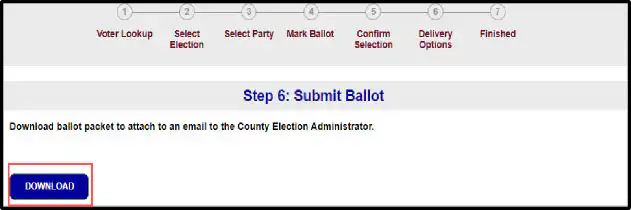
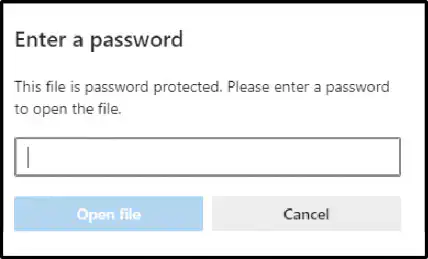
You will be prompted to enter a password.
The password is the PIN from the “ElectMT voter Ballot PIN” email you received.
Follow the directions below to attach the ballot packet to an email.
MAIL OR FAX: If you choose to deliver your ballot by Mail or FAX, click “PRINT.”
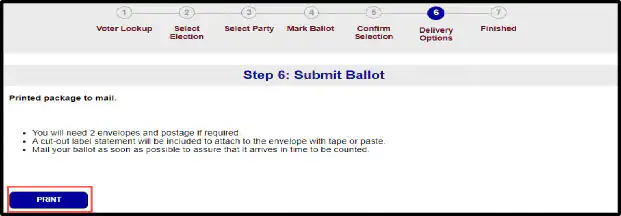
Your ballot packet includes instructions on how to return your ballot.